








User Guides, Tutorials & FAQs
Practical instructions, helpful tutorials and answers to frequently asked questions to help you understand and use websites, software applications and digital business tools more effectively.
Technology is more useful when people know how to use it correctly. This section provides explanations, step-by-step instructions, practical tips and answers to common questions about digital services and business systems.
Whether you are a business owner, school administrator, church leader, NGO worker or everyday user, these resources can help you complete tasks more confidently and resolve common questions independently.
1. What Are User Guides, Tutorials and FAQs?
📘 User Guides
User guides explain how a website, software application, feature or service works. They may describe available functions, account settings, user roles and common tasks.
🧭 Step-by-Step Tutorials
Tutorials walk users through a particular task in a logical sequence, helping them understand what to do, where to find the relevant options and what to expect.
❓ Frequently Asked Questions
FAQs provide concise answers to questions that users commonly ask about a product, service, account, feature or process.
💡 Tips and Best Practices
Practical tips help users work more efficiently, avoid common mistakes, protect their information and make better use of available features.
2. Topics Covered by Our Tutorials
User guides and tutorials may cover different services depending on the product, system or task involved. Common areas include:
🌐 Websites and Online Services
- How to navigate a website.
- How to complete online forms.
- How to create or access an account when registration is available.
- How to submit information or enquiries.
- How to use available online service features.
🏢 Business Management Systems
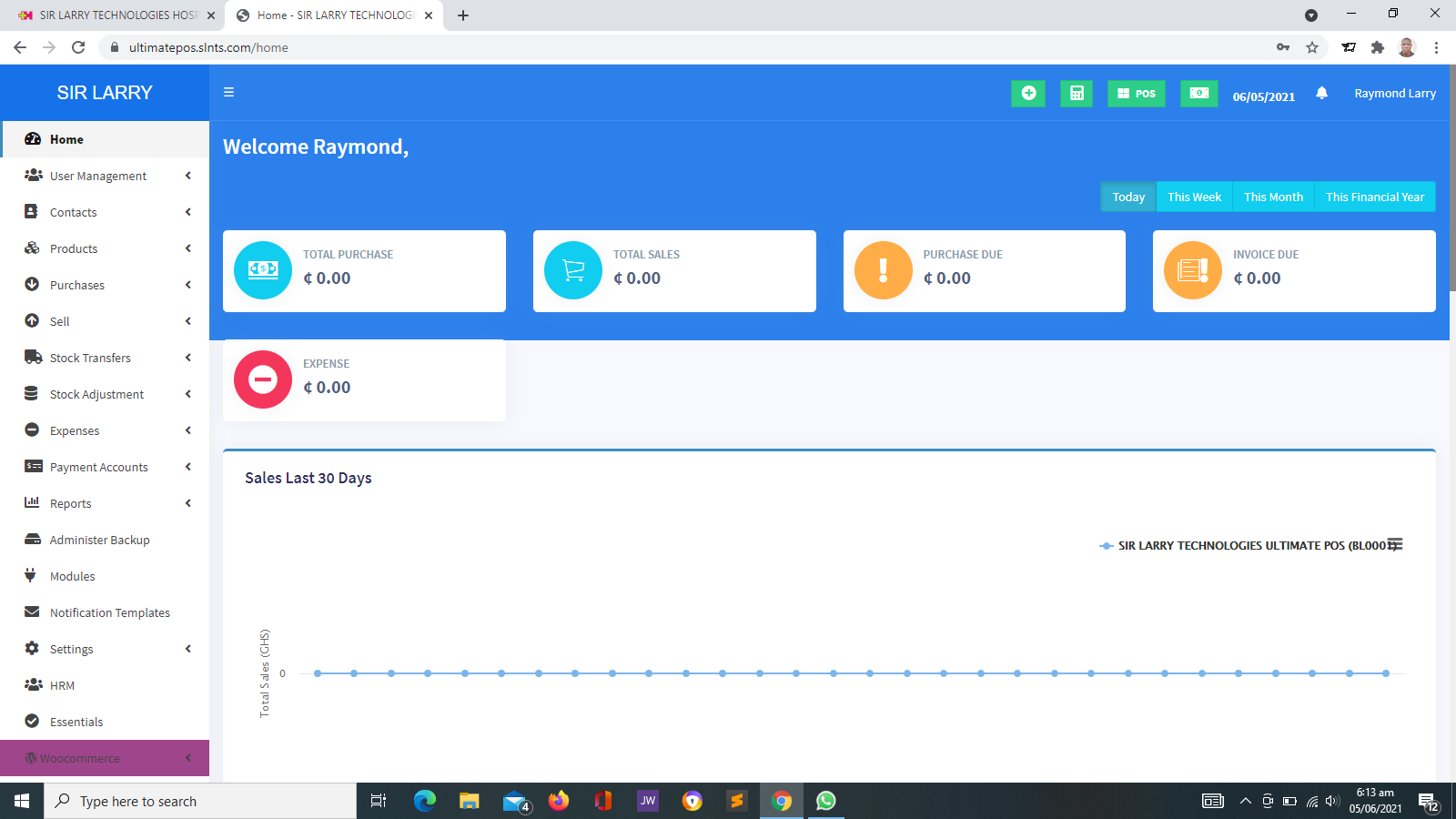
- How to sign in and navigate a dashboard.
- How to add or update records.
- How to search for information.
- How to generate available reports.
- How to manage user access where permitted.
🛒 POS and Inventory Systems
- How to record a sale.
- How to register products and stock items.
- How to review available inventory.
- How to check transaction records.
- How to print receipts where supported.
🏫 School and Learning Platforms
- How to manage student or learner records.
- How to access learning materials.
- How to use supported attendance features.
- How to manage assignments or assessments where available.
- How to review learning or administrative reports.
⛪ Church and NGO Systems
- How to manage membership information.
- How to record activities or attendance where supported.
- How to manage projects and beneficiaries in relevant systems.
- How to review contributions or donations where available.
- How to access reports and administrative functions.
✉️ Email, Payments and Notifications
- How to understand email notifications.
- How to follow supported online payment processes.
- How to check payment confirmation.
- How to understand SMS notification delivery.
- How to report unsuccessful transactions or messages.
3. How to Follow a Step-by-Step Tutorial
Following instructions in the correct order can help prevent mistakes and make it easier to identify where a problem occurs.
Identify the Task
Read the tutorial title and introduction to confirm that it addresses what you want to accomplish. For example, a guide to adding a product is different from one explaining how to record a sale.
Check the Requirements
Confirm that you have access to the system, the correct account, any required information and the appropriate permissions to perform the task.
Follow the Instructions in Order
Complete each step before proceeding to the next. Avoid skipping steps, especially when creating records, changing settings or processing transactions.
Check Your Entries
Review names, dates, quantities, amounts, email addresses and other details before saving or submitting information.
Confirm the Result
Check whether the system displays a confirmation message, updated record, receipt or other expected result. If the task fails, note the step where the problem occurred.
Ask for Help When Necessary
If the instructions do not resolve your question, contact the relevant support provider with a clear description of the task and the problem you encountered.
4. Example Tutorials for Common Tasks
The following examples demonstrate how a general tutorial can explain a task. The exact steps may differ depending on the software or service being used.
Example A: How to Sign In to a System
- Open the official website or application address provided by your organization.
- Select the sign-in or login option.
- Enter your registered username, email address or other required identifier.
- Enter your password privately.
- Select the sign-in button and wait for the system to respond.
- If sign-in fails, verify your details and follow the system's approved account-recovery process.
Tip: If you cannot access the account, check whether the account is active and whether you are using the correct login page.
Example B: How to Add a New Record
- Sign in with an account authorized to manage records.
- Open the relevant section of the system.
- Select the available option to add or create a new record.
- Complete the required fields using accurate information.
- Review the information before saving.
- Save the record and check whether it appears in the system.
Tip: Avoid creating duplicate records. Search for an existing record first when appropriate.
Example C: How to Find a Record
- Open the section where the record is stored.
- Locate the search field or available filters.
- Enter a suitable identifier, such as a name, reference number or date.
- Apply the search or filter.
- Review the results and open the correct record.
Tip: If no result appears, check spelling, dates, reference numbers and whether you have permission to view the record.
Example D: How to Check an Online Payment
- Open the relevant transaction history or payment record, if available.
- Check the transaction reference and amount.
- Review the status displayed by the payment service or system.
- Check the official confirmation from the payment provider when necessary.
- If the status is unclear, contact support with the reference and transaction details.
Tip: Do not repeat a payment simply because the confirmation page did not appear. First check the transaction status with the payment provider or authorized support team.
5. How to Use Frequently Asked Questions (FAQs)
FAQs are designed to answer common questions quickly without requiring users to read a complete manual. To get the most from them:
- Search using keywords: Use the main words associated with your question, such as login, password, payment, report or email.
- Read the full answer: Some answers include important conditions, prerequisites or limitations.
- Check relevance: Make sure the answer relates to your particular product, service or account type.
- Follow the recommended steps: Complete the instructions carefully before trying unrelated solutions.
- Check related articles: A related guide may provide more detailed instructions.
- Contact support if unresolved: If the answer does not solve the issue, provide details of what you have already tried.
6. Frequently Asked Questions
Q1. What is the purpose of the Knowledgebase?
The Knowledgebase provides organized information, tutorials, explanations and troubleshooting guidance to help users understand services and complete common tasks. It can also help users find answers before contacting technical support.
Q2. Are tutorials suitable for beginners?
Yes. Tutorials can be written for beginners and experienced users. Beginner-friendly guides explain the task, list prerequisites and present instructions in a clear sequence.
Q3. What should I do if the instructions do not match my screen?
The system may have a different version, configuration, layout or user-permission level. Check that you are using the correct guide. If the difference remains, contact the system administrator or service provider for guidance.
Q4. What if I cannot find an answer to my question?
Try searching with different keywords or reviewing related articles. If you still cannot find the answer, contact the appropriate support team and explain what you are trying to do.
Q5. Can I use a tutorial for a different software system?
General concepts may be similar across systems, but specific buttons, workflows and available features can differ. Follow instructions written for your actual system whenever possible.
Q6. Why do I see a feature in a tutorial that is missing from my account?
The feature may not be included in your system, may not be enabled or may require a different permission level. Ask your administrator or service provider to confirm whether the feature is available to you.
Q7. Can tutorials help me solve technical problems?
Yes. Some tutorials explain common errors and their solutions. However, issues involving server failures, data loss, payment disputes, security incidents or complex system faults may require assistance from a qualified support provider.
Q8. How can I request a guide for a particular task?
Describe the system you are using, the task you want to perform and the point where you need help. Include the name of the feature, if known, and any relevant error message. Do not include passwords or other confidential information.
Q9. Do tutorials replace formal training?
Not always. Tutorials are useful for self-paced learning and reference, while formal training may be necessary for complex workflows, organizational procedures, sensitive data handling or tasks that require supervised practice.
Q10. Are all guides applicable to every customer?
No. The instructions that apply to a customer depend on the specific service, software configuration, subscription or agreement, and available user permissions.
7. Tips for Learning New Software
🎯 Start with the Basics
Learn how to sign in, navigate the dashboard, find key sections and understand the functions you use most frequently.
🧪 Practise Carefully
Where possible, practise with sample data or a designated test environment before performing important operations on live records.
📝 Keep Useful Notes
Record non-sensitive instructions and internal procedures that help you complete recurring tasks consistently.
🔄 Review Updated Instructions
When a system changes, review current documentation instead of relying entirely on old screenshots or instructions.
8. Safety and Data Protection While Following Tutorials
When using online guides or following instructions for business software, protect your accounts and the information you manage.
- Use official websites and trusted documentation sources.
- Never share your password, one-time verification code or private login credentials with someone claiming to provide help.
- Do not upload confidential business, student, patient, member or customer information to public forums.
- Check records carefully before editing, deleting, importing or exporting data.
- Make sure you are authorized to access the information or perform the action described.
- Follow your organization's data protection and record-handling procedures.
- Ask an administrator or support provider before performing a high-risk action you do not understand.
9. When Should You Contact Technical Support?
A tutorial or FAQ may be enough for a routine task, but some situations require direct assistance.
- You cannot access an account after following the approved recovery steps.
- A feature appears to be missing or does not work as expected.
- You receive repeated system errors.
- Records appear to be missing, duplicated or incorrectly updated.
- A payment or transaction has an unclear status.
- You suspect unauthorized access or exposure of confidential information.
- The instructions do not match your system configuration.
When requesting help, provide the system name, the task you were attempting, the steps you followed, the approximate time the issue occurred and the exact error message where available. A screenshot can be useful if it does not expose passwords, personal information or other sensitive data.
10. How Knowledgebase Articles Help Organizations
⏱️ Save Time
Users can look up routine instructions without waiting for individual assistance every time they need to complete a familiar task.
📚 Support Consistent Work
Documented procedures help team members follow the same steps and reduce avoidable differences in how tasks are performed.
🤝 Improve User Confidence
Clear instructions make unfamiliar tools easier to understand and can help users become more independent.
🛠️ Support Technical Teams
Useful documentation can reduce repeated questions and help support teams focus on issues that require investigation or direct intervention.
11. How to Request a Tutorial or User Guide
If you need instructions for a particular system or feature, prepare the following information before contacting the relevant provider:
- System or service: Identify the website, application or service you are using.
- Task: Explain what you want to accomplish.
- Current challenge: Describe what is confusing or preventing you from completing the task.
- Steps attempted: Explain what you have already tried.
- Expected result: State what you expected to happen.
- Observed result: Explain what actually happened and include any relevant error message.
These details help the support team understand your question and determine whether you need an existing article, a new tutorial, account assistance or technical investigation.
Need Help with a Technology Service?
Sir Larry Technologies provides website development, business software solutions and IT services. If you need guidance on a system, want to discuss a technology requirement or require assistance with a service provided by our team, visit our website to learn more and get in touch.
Visit Sir Larry Technologies